

Import inventory from Excel or CSV
Bring the stock spreadsheet you already keep. SlickCell lets you import inventory from Excel or CSV with Slick Intelligence Import: Slick Match reads your column names, the preview points out items you already stock and suppliers spelled a little differently, and nothing is written until you have looked and decided.
Why moving stock into new software stalls
The data exists. It is just in a spreadsheet shaped for the last system, or for nobody.
The supplier's price list says Qty, the old till said Stock, and the new system wants Quantity.
The same screen protector is in the sheet twice, once from the old system and once from last month's order.
One supplier appears under three spellings, and each would become a supplier of its own.
Nobody knows what the import will do until it has done it.
A long list gets halfway in, the connection drops, and nobody is sure which rows made it.
Parts, accessories and devices by IMEI or serial number sit in one sheet with different columns.
From your spreadsheet to your stock
Slick Intelligence Import matches what it recognises and holds what it is unsure of for your decision.
- 01Pick the kindParts, accessories or devices, each its own import.
- 02Drop the fileA CSV file or an Excel workbook, .xlsx or .xls.
- 03Slick MatchEach column is matched to a SlickCell field, and an uncertain match waits for you.
- 04The previewWhat would be added, updated, skipped or refused, row by row. Nothing is written.
- 05Your decisionsPossible existing items and unrecognised suppliers wait for your choice.
- 06ImportLarge files go in batches, with progress counted in rows.
A similar column name, a possible existing item and a similar supplier each wait for your choice, and none of them has a default. Columns SlickCell recognises are matched for you and can be changed before you continue.
Three things it catches before they reach your stock
Real screens from Slick Intelligence Import, on a demo shop.

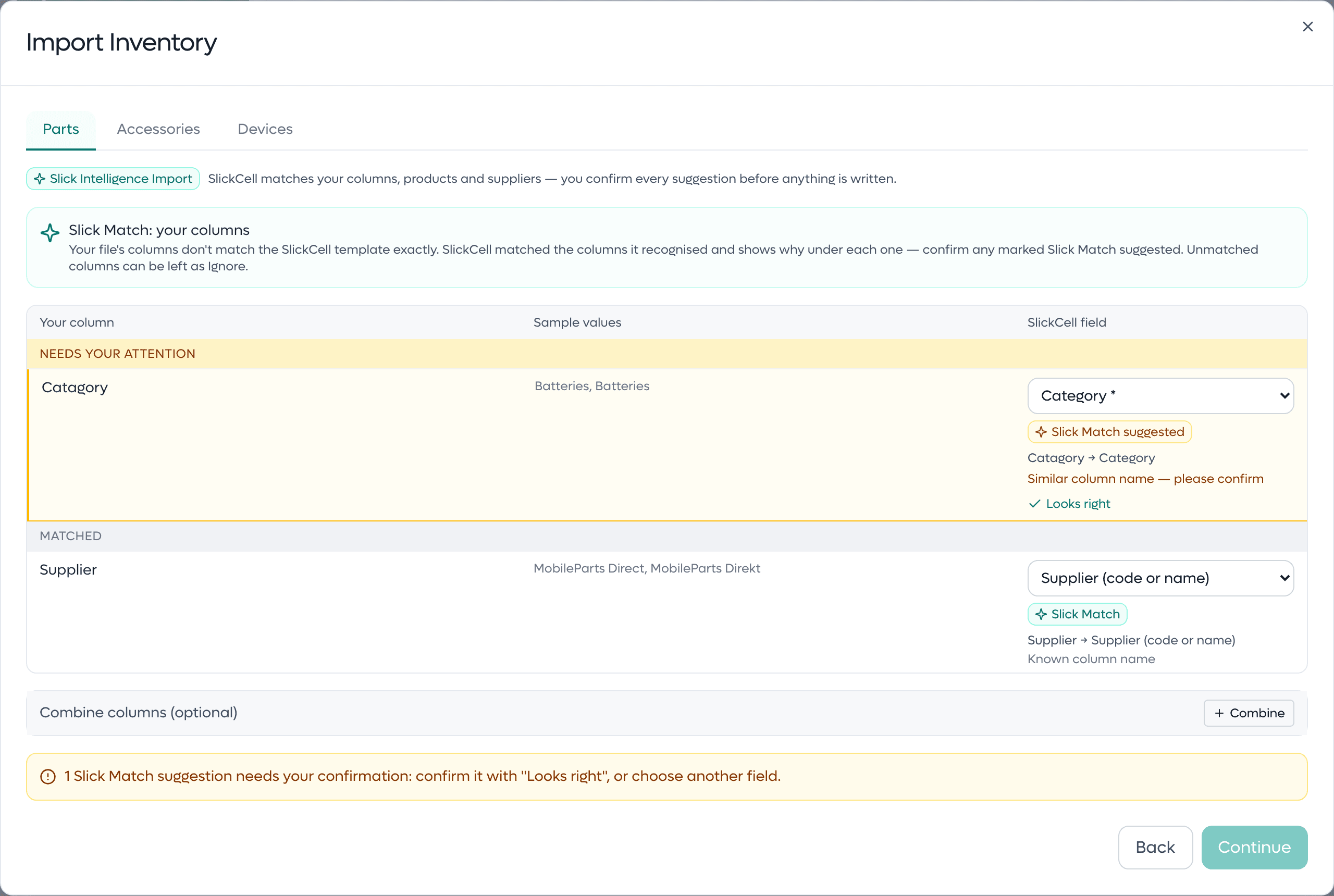
Your column names, matched to SlickCell's
Slick Match reads each column heading. An exact name is matched as it is. A known alternative, such as Qty for Quantity or Retail for Sell price, is matched and labelled Slick Match. A heading that is only close, such as Catagory, is marked Slick Match suggested and waits for you to press Looks right or choose another field.
Continue stays unavailable until every required field is matched and every suggested match is confirmed.

An item you already stock is not added twice
A part or accessory row with no SKU is compared by name with what you already hold. When the name matches, the row is held under Possible existing item found, with two choices: Update that item, or Add as new item with a fresh SKU. Nothing is merged on your behalf.
The comparison ignores capital letters and extra spaces. Wording and punctuation still count.
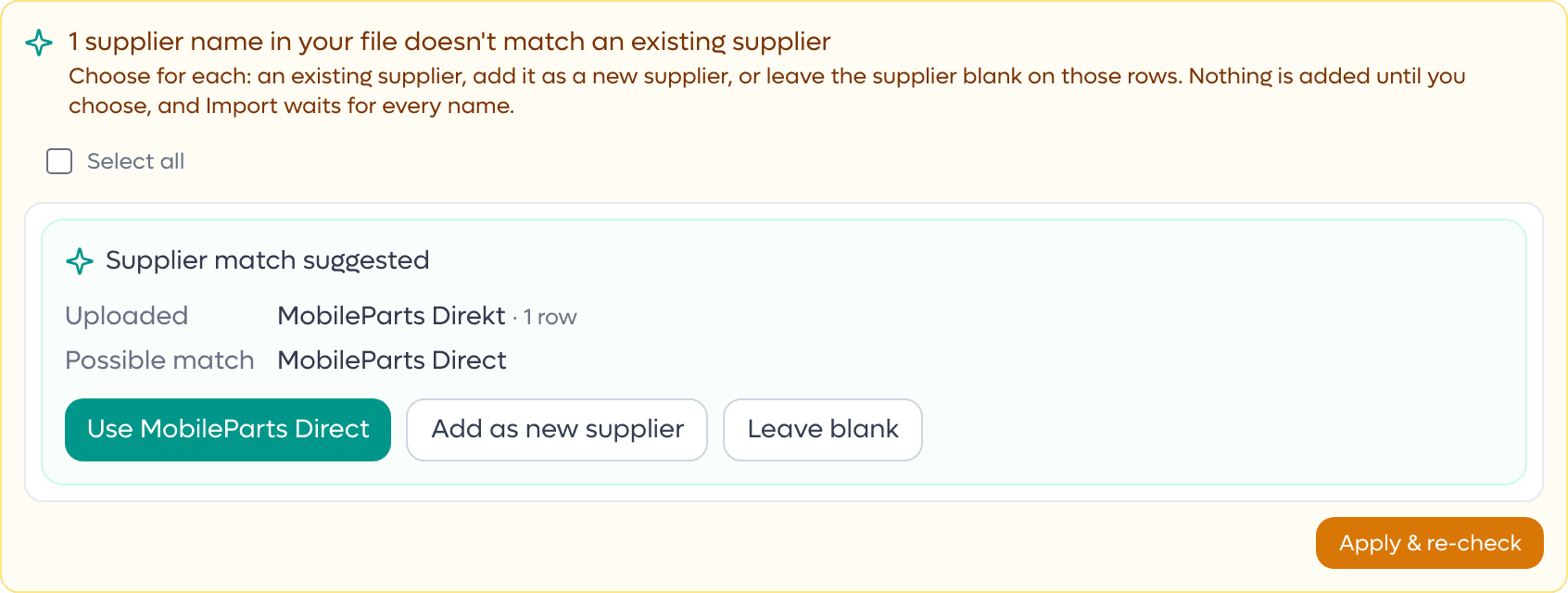
A supplier spelled differently is caught before it is duplicated
A supplier name in your file that matches none of your suppliers needs a decision. When it is within two characters of one you already have, it is shown as Supplier match suggested, with three choices: use that supplier, Add as new supplier, or Leave blank.
Import stays unavailable until every unrecognised supplier name has a decision.
Day one starts with your real stock
- Your spreadsheet as it is
- Slick Match maps the columns you already have, and each import has an example file if you would rather start from one.
- No silent duplicates
- Items you already stock and suppliers you already have are pointed out, and you decide each one.
- A preview you can act on
- Errors and warnings are listed apart, a refused row can be fixed in place and checked again, and the lists download as CSV.
- Interrupted is not half done
- Large files go in batches. If one fails, pressing Import again carries on with the rest without repeating what already went in.
Slick Intelligence Import and Slick Match are on every plan.
Where stock imports usually go wrong
The specific ways a spreadsheet and a stock system disagree, and what the import does about each.
- Devices, one unit per reference
- On the devices import each row is a unit identified by its IMEI or serial number. A cell holding several references, separated by commas, semicolons, pipes or new lines, becomes one unit per reference.
- A device row with no reference
- Give it a quantity and that many units are created with generated references, so the real IMEI or serial number can be added later.
- The same reference twice on one product
- Refused, because that is one device entered twice. A reference repeated across different products is imported as a separate unit, with a warning.
- Columns SlickCell has no field for
- On the devices import they are kept as Other Specs on each unit, tagged Auto, so nothing is lost. On parts and accessories they can be set to Ignore.
- A name spread across several columns
- When a supplier's list splits an item's name over separate columns, Combine columns joins them into the item name.
- Stock that moves while you review
- In Replace stock mode, a row whose stock changed after the preview is refused instead of overwriting the sale that changed it.
- Who can run an import
- Owners and managers. The server checks the role before it reads a single row.
What the importer handles
CSV and Excel
CSV files and .xlsx or .xls workbooks. In a workbook the first sheet is read, from its first non-empty row.
Slick Match
Exact, known and similar column names, each labelled with why it matched.
Parts, accessories and devices
Quantities for parts and accessories. One unit per IMEI or serial number for devices, each with its own condition, cost and price.
Five import modes
Insert new only, update existing details, both, adjust stock by the quantity, or replace stock with it.
A preview that writes nothing
New, existing, skipped and refused rows, counted before anything is saved.
Fix a row in place
Edit a refused row and check it again without going back to the file.
Supplier decisions
Use an existing supplier, add a new one or leave it blank. Nothing is created until you choose.
Review lists to download
Errors, warnings or the full review as CSV, with every original column kept.
Questions about importing inventory from Excel
Both. Slick Intelligence Import reads CSV files and Excel workbooks, .xlsx and .xls. In a workbook it reads the first sheet, taking its first non-empty row as the column headings.
No. Slick Match matches your headings to SlickCell's fields: exact names, common alternatives such as Qty or Retail, and close spellings, which you confirm. A file that already uses the example file's headings goes straight to the preview.
If the row has a SKU, the import mode you chose decides: skip it, update its details, or adjust or replace its stock. If it has no SKU but its name matches a part or accessory you hold, the row waits under Possible existing item found until you choose Update that item or Add as new item.
No. A supplier name that matches none of yours waits for your decision: an existing supplier, a new supplier by that name, or blank. A close spelling of a supplier you already have is offered as a suggestion, and the import cannot start until every name is decided.
Yes. On the devices import each row is one unit identified by its IMEI or serial number, with its own condition, cost and selling price, and storage, colour and battery health where your sheet has them. Several references in one cell become several units.
No. It matches, compares and points things out. A similar column name, a possible existing item and a similar supplier each wait for your choice with no default, recognised columns can be changed before you continue, and the preview writes nothing to your stock.
Owners and managers. The server refuses an import from any other role.
Yes. Parts, accessories and devices import from CSV with a preview of exactly what will be written before anything is saved. Most shops finish open repairs on the old system and start new work in SlickCell from go-live.
Bring the spreadsheet you use today
We will open it in Slick Intelligence Import with you and go through the preview, before anything is written.