

Slick Intelligence
Know what is happening across your repair business without digging for it. On the Professional and Supplier Pro plans, Slick Intelligence reads the figures already in SlickCell and brings forward what changed and what needs your attention, in plain English, on your dashboard and beside your reports. On every plan it also helps you bring a spreadsheet of stock into SlickCell. When a match is uncertain, it waits for you to decide.
What Slick Intelligence says
Examples of the sentences it writes. The figures in each come from your own reports, so every shop reads its own.
- Dashboard: performance
- “Sales softened this month, while gross margin improved considerably.”
- Dashboard: repairs
- “Repair performance improved. The shop completed 12 repairs, twice the 6 of the same days last month, while median turnaround improved from 3 days to 30 hours.”
- Needs attention: invoicing
- “3 completed repairs have no invoice yet.”
- Revenue report
- “Sales billed (incl. VAT, before refunds) were £12,480 across 96 sales.”
- Counter report, owners and managers
- “All 6 till sessions closed within £1.”
- Needs attention: the till
- “A till session opened on 2 Oct is still open, so that day's cash is not yet reconciled.”
It states what the figures show, and leaves the reasons and the next step to you.
Your dashboard and reports, read back to you
The figures you already have, compared with the period before and put into sentences.

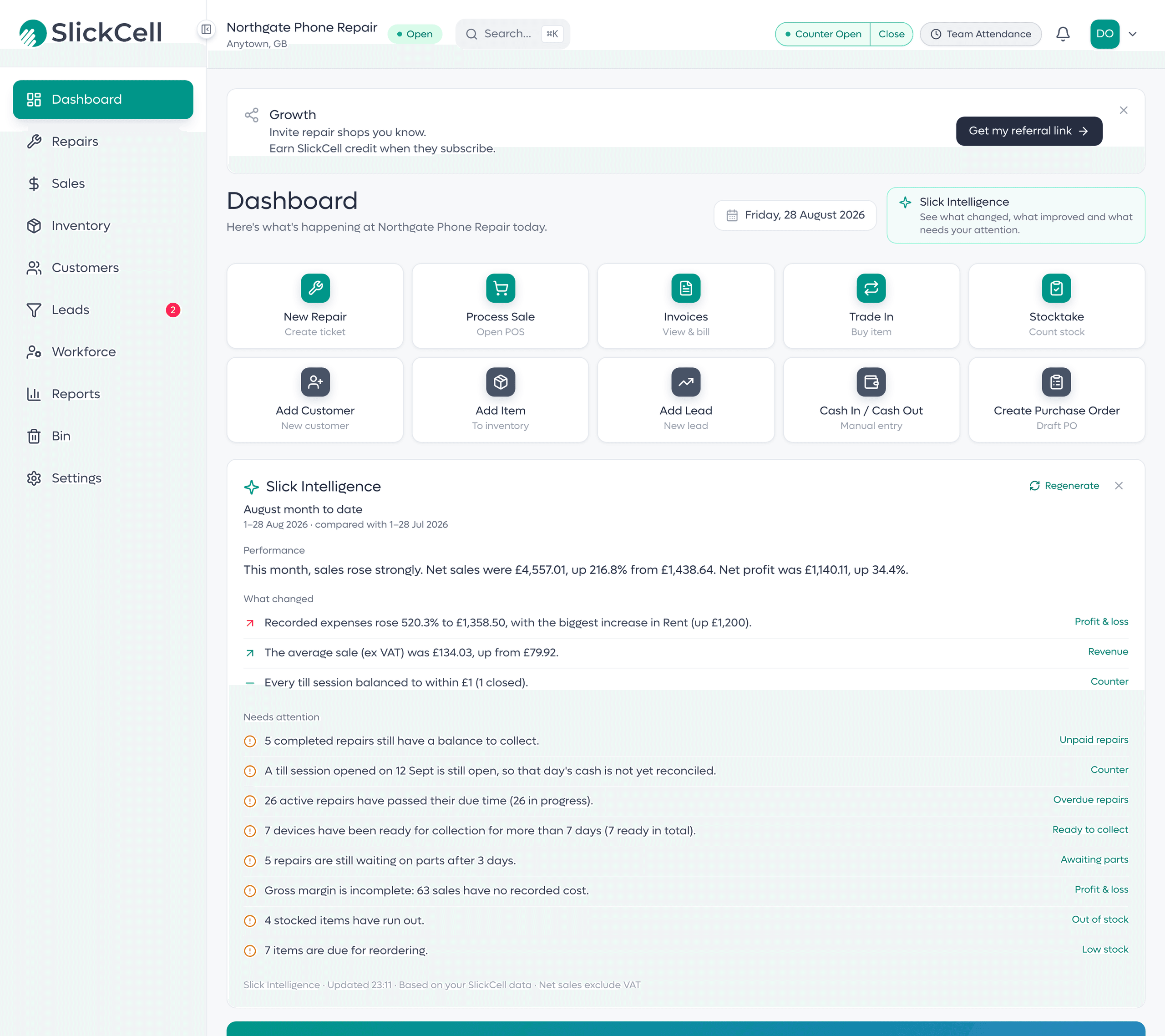
The period in three parts
Open Slick Intelligence on the dashboard and the period reads in three parts: Performance, What changed and Needs attention. Sales, gross margin and net profit come first, then repairs completed and turnaround, then the counter for owners and managers.
Its sales totals are read from the same report engines as the reports.

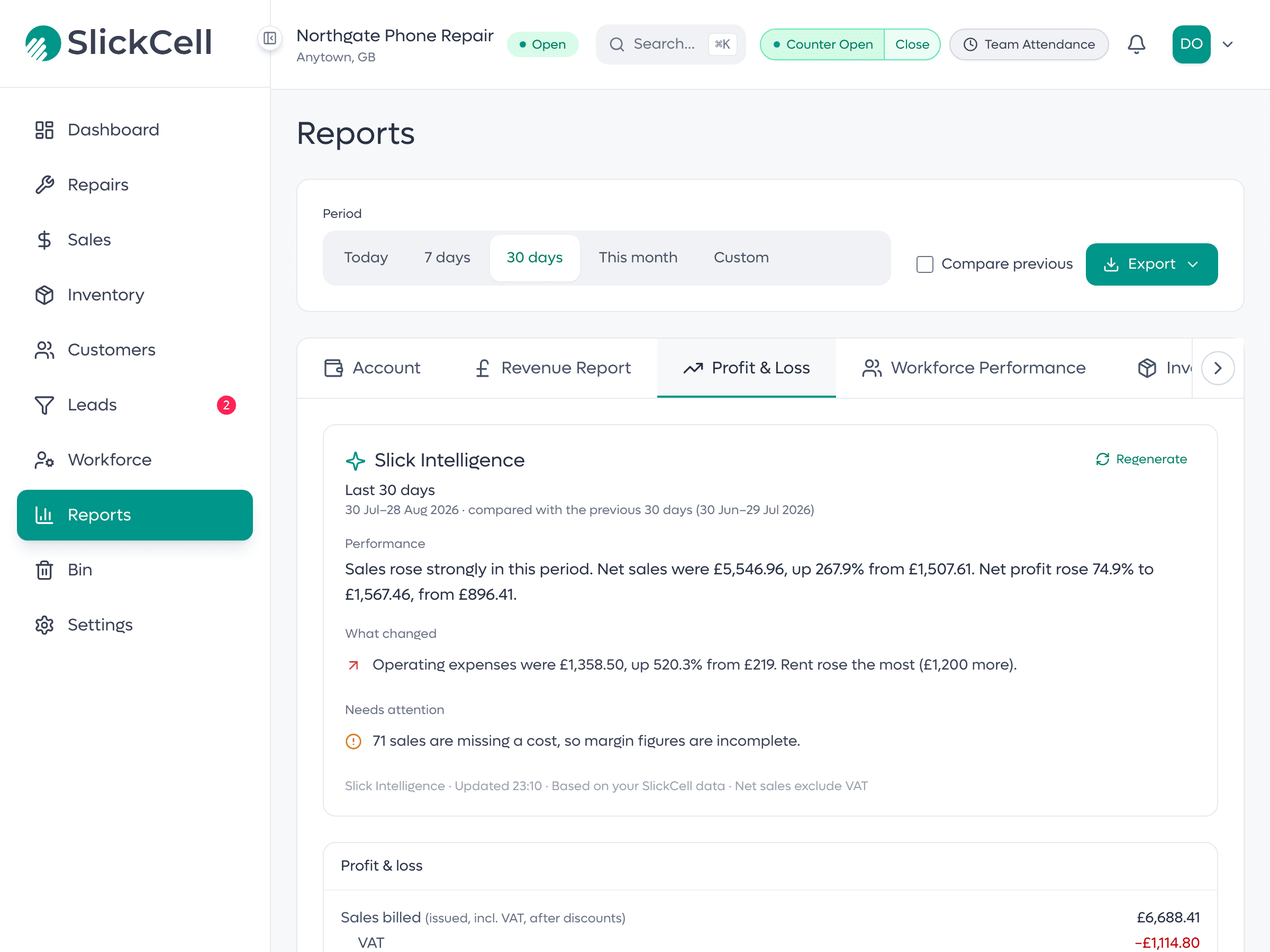
A summary on four reports
Revenue, Profit & loss, Tax & refunds and the Counter report each carry their own Slick Intelligence summary, for the report's own period and about its own figures. With Compare previous switched on, the summary compares against exactly the window the report prints.
Regenerate can word a summary differently. For the same figures, the findings, their order and every number stay the same.
The work that is waiting, in one list
Needs attention gathers what has been left unfinished, and each line opens the list it came from.
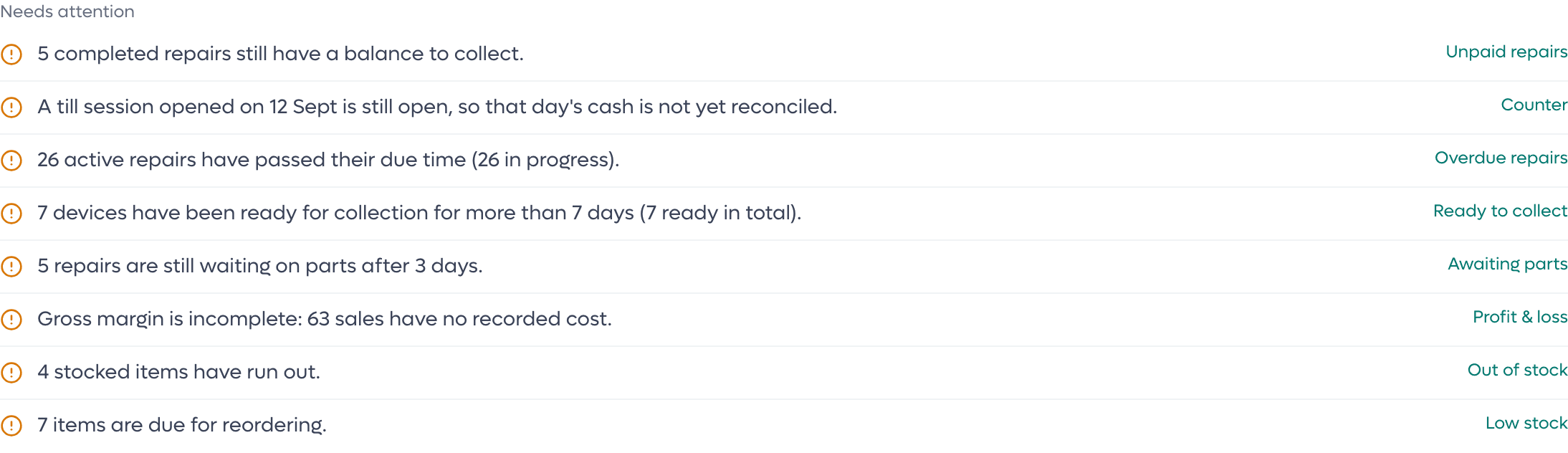
Each line opens its queue
Overdue repairs, completed repairs with no invoice, balances still to collect and stock that has run low sit in one list. Beside each line is a link to the queue in SlickCell where you deal with it.
A line appears only when its count is above zero.
Where each line takes you
- Repairs past their due time
- Opens Overdue repairs.
- Completed repairs with no invoice
- Opens Repairs.
- Completed repairs with a balance to collect
- Opens Unpaid repairs.
- Ready for collection for more than 7 days
- Opens Ready to collect.
- Awaiting parts for more than 3 days
- Opens Awaiting parts.
- Items out of stock or at their reorder level
- Opens Out of stock or Low stock.
- Till differences and a till left open
- Opens the Counter report. Owners and managers only.
- Sales with no recorded cost
- Opens Profit & loss, where gross margin is incomplete until each sale has a cost.
Slick Intelligence Import
Bring in the stock spreadsheet you already keep. Slick Intelligence Import reads it, matches it and shows you what it found before anything is saved.
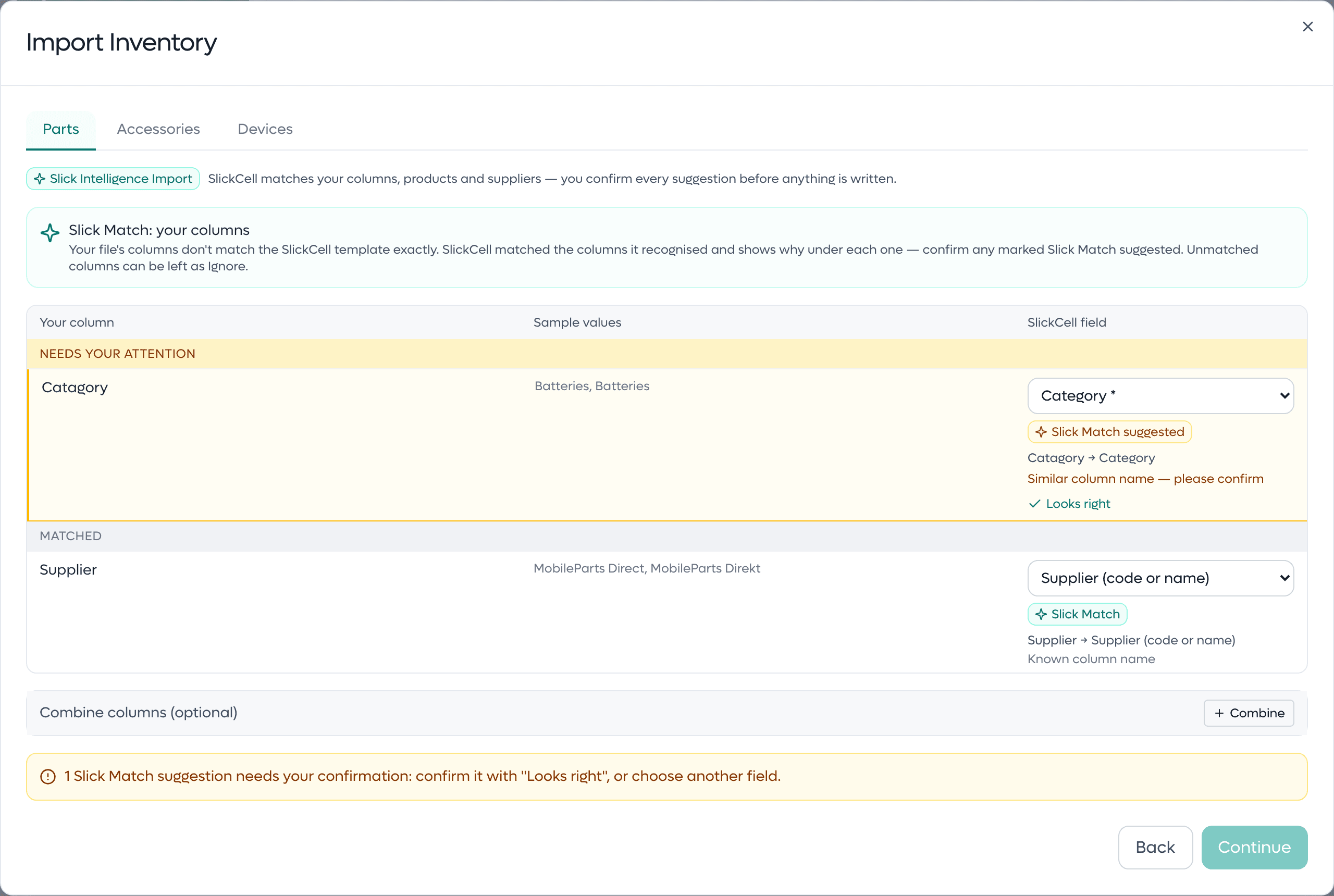
Your columns, matched to SlickCell's fields
Upload a CSV or Excel file of parts, accessories or devices. Slick Match lines each column up with a SlickCell field and shows why: an exact name, a common name for that field, or a similar name. A similar name is marked Slick Match suggested and waits for you to confirm it with Looks right or pick another field. On the devices import a column it does not recognise is kept as an extra spec on each unit, which you can change or ignore. On parts and accessories it can be set to Ignore.
A suggested match is never applied until you confirm it.

A row that may already be in stock is held for you
When a part or accessory row has no SKU and its name matches an item you already stock, the preview holds it under Possible existing item found. You choose Update that item, or Add as new item with the new SKU shown. Nothing is merged on your behalf.
The preview writes nothing. Stock changes only when you run the import.
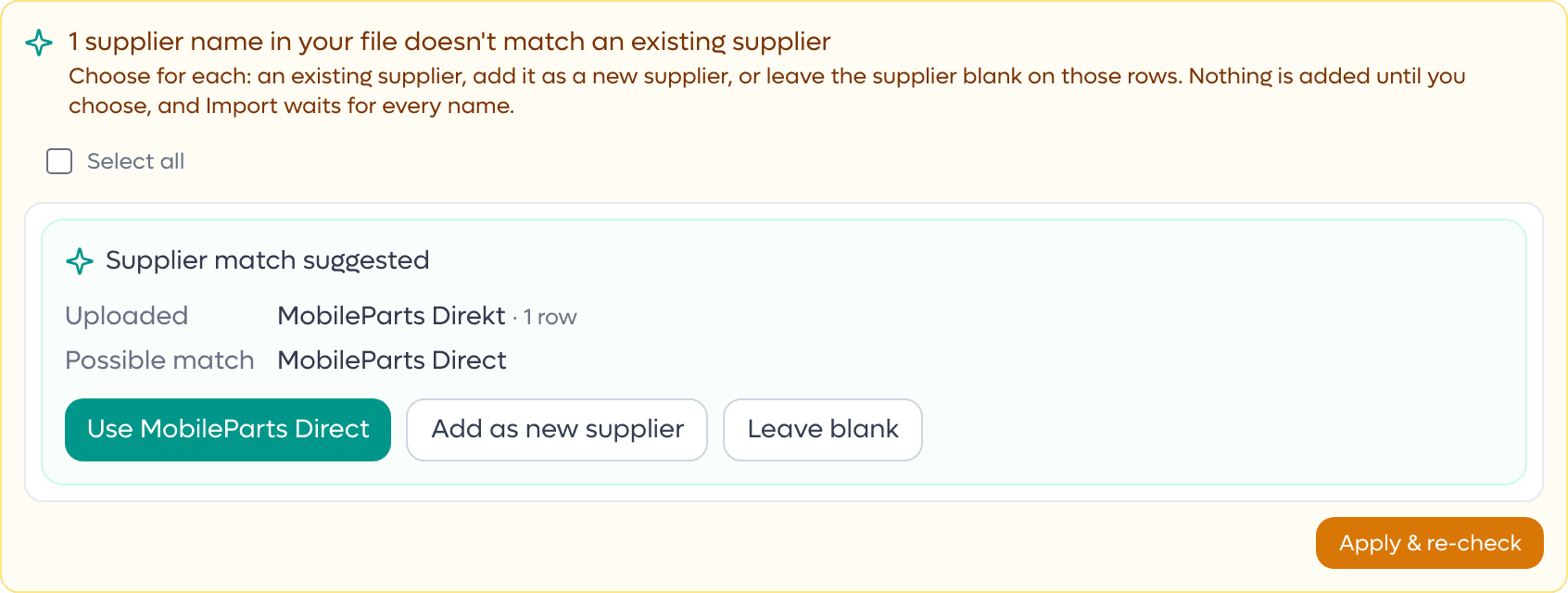
A supplier name that is nearly right
When a supplier name in your file differs by one or two characters from a supplier you already have, the preview suggests the match. You choose Use followed by that supplier's name, Add as new supplier, or Leave blank. The import waits until every supplier name in the file has a decision.
A new supplier is added only after you choose Add as new supplier.
It assists. You decide.
- Uncertain matches wait for you
- A similar column name, a possible existing item and a similar supplier each wait for your choice, and none of them has a default. Columns SlickCell recognises are matched for you and can be changed before you continue.
- The preview writes nothing
- Checking a file adds, updates and merges nothing. Your stock changes when you run the import.
- Only what your role may read
- A technician's summary covers repairs and never money. Till findings are for owners and managers, at counter level, with no staff names.
- Figures from your reports
- Every figure in a summary is taken from, or worked out from, your SlickCell reports for the same period.
Slick Intelligence observes, compares, surfaces and assists. You decide.
Questions about Slick Intelligence
The Slick Intelligence summaries (the dashboard summary, the Revenue, Profit & loss, Tax & refunds and Counter summaries, and the Needs attention list) are on the Professional and Supplier Pro plans. Slick Intelligence Import and Slick Match are on every plan.
No. It reads the figures your reports already show and works out what changed from them. A summary is read only: it changes nothing in your sales, repairs or stock.
Each person sees only what their role may read. Owners, managers and accountants see the sales figures. Anyone who works on repairs sees repair and stock counts, never money. Till findings are for owners and managers only, at counter level, with no staff names.
Each summary reads only your own shop's figures, and its sentences are SlickCell's own wording of them. Import matching runs inside SlickCell, on your own shop's data.
Yes. A suggested column can be pointed at another field. A possible existing item can be added as a new item instead. A similar supplier can be added as a new supplier or left blank. Nothing is merged, created or attached until you choose.
Month to date is compared with the same days last month. Any other period is compared with the period of the same length just before it. When a report has Compare previous switched on, its summary uses exactly the window the report prints.
See the summary beside its figures
We will open the dashboard, a report and an import on a demo shop, and show you where every sentence comes from.