

SlickCell help centreInventory & device unitsUpdated
Import your stock from a spreadsheet
Bring parts, accessories and devices into SlickCell from a spreadsheet, confirm what Slick Match suggests, and read a preview that writes nothing.
By the end of this your existing stock is in SlickCell, item by item, and you have seen exactly what the import would do before it did it.
The import is Slick Intelligence Import, on every plan. It matches your columns, products and suppliers to what SlickCell already holds, and every match it is unsure of waits for your decision. Nothing goes into your stock until you press Import.
Open the import
Go to Inventory, open the More menu and choose Import CSV. The Import Inventory window opens.
Owners and managers can run an import. If Import CSV is not in your More menu, or the preview is refused, ask an owner or manager.
Choose what you are importing, then the file
Pick Parts, Accessories or Devices at the top: each is its own import, because each has its own columns. Then click to choose a CSV or Excel file (.csv, .xlsx or .xls). If you want a starting point, the window offers an example file for the tab you are on.
On the Devices tab every device unit is identified by its IMEI or serial number, one unit per reference.
Check the columns
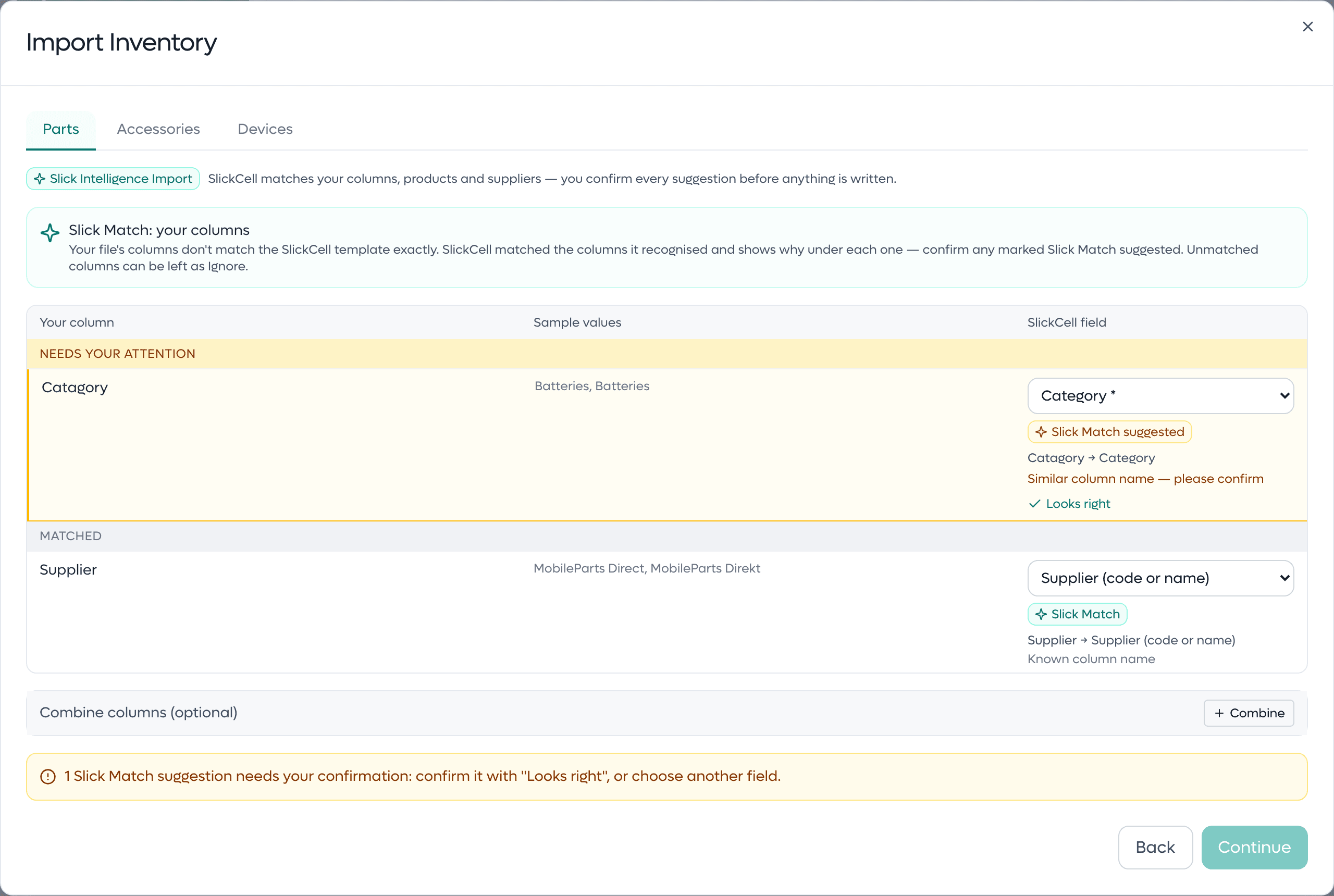
If your file's columns are named differently from SlickCell's, Slick Match lines them up and says why under each column it matched: Exact match, Slick Match for a known column name, or Slick Match suggested for a similar name. A suggested match waits for you. Press Looks right, or choose another field from the list, then Continue.
Continue stays unavailable until every required field has a column and every Slick Match suggested column has your answer. A file that already uses SlickCell's column names skips this step and goes straight to the preview.
Read the preview
SlickCell checks the file against your stock and shows the result: total rows, how many can be imported, rows with errors and rows skipped, with every row listed underneath. The preview writes nothing to your stock.
Rows with errors are skipped. You can fix a row in the window, or download the errors, the warnings or the full review as a CSV and correct your file.
Decide on supplier names
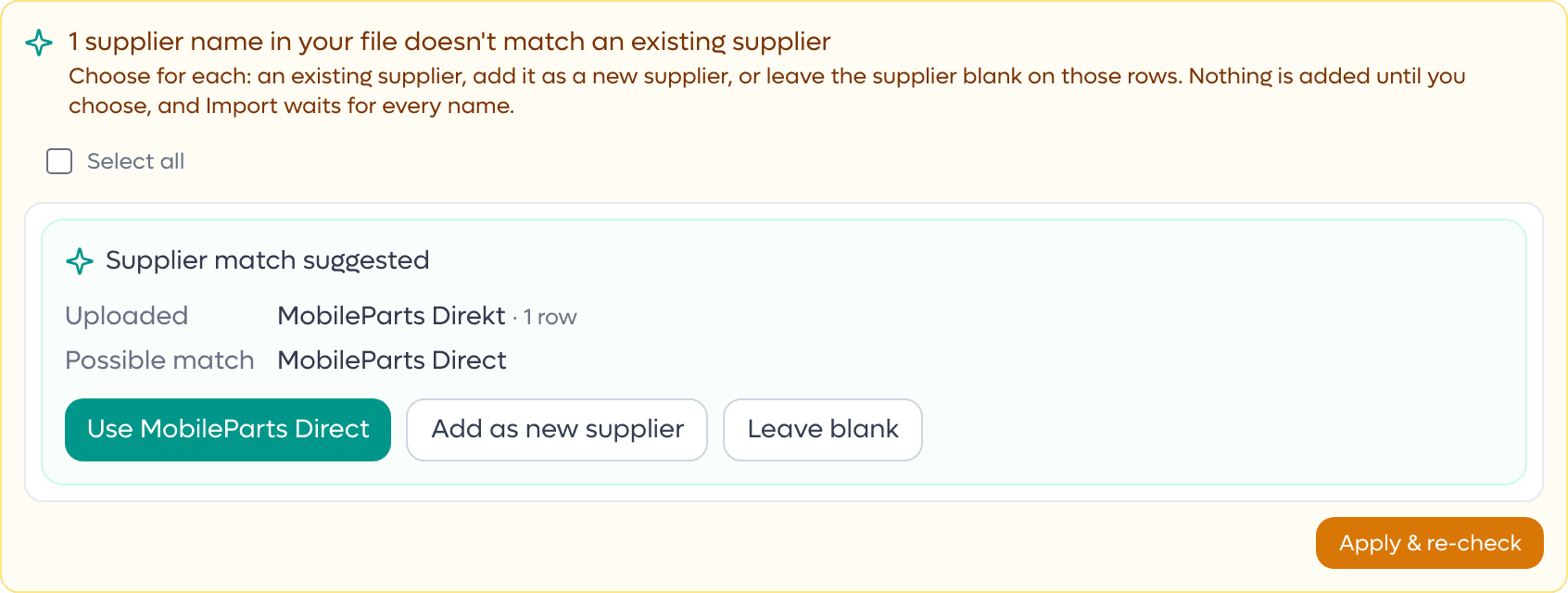
A supplier name in your file that does not match one you already have is listed in the preview. When it is a letter or two away from an existing supplier, SlickCell shows Supplier match suggested with three choices: Use followed by that supplier's name, Add as new supplier, or Leave blank. Any other name gets the same choices from a list. Apply & re-check runs the preview again.
No choice is made for you. A new supplier is added only after you choose Add as new supplier and apply it, and Import waits until every name has a decision.
Decide on possible existing items
A part or accessory row with no SKU, whose name matches an item already in your stock, is held and shown as Possible existing item found, with your row beside the item you already have. Choose Update that item to point the row at it, or Add as new item to give the row its own new SKU, shown on the button. The preview runs again with your choice.
Until you choose, the row is not imported. If several items share that name, open the row from the list below the preview (its action reads Update or add as new) and enter the SKU of the one you mean.

Import
When the preview shows what you expect, press Import. The rows that passed are written, and the window tells you how many items were added, updated and skipped. Choose Import another for the next file, or Done.
Questions that come up
- Is the import on every plan?
- Yes. Slick Intelligence Import and Slick Match come with every SlickCell plan.
- Can a suggestion change my stock on its own?
- No. A suggested column, supplier or existing item is never chosen for you, nothing is merged, created or attached until you pick an option, and the preview writes nothing. Your stock changes only when you press Import.
- Some of my devices have no IMEI or serial in the spreadsheet
- Give the row a quantity instead. SlickCell creates that many device units with their own references, and you can add the real IMEI or serial numbers later.